# Native uv Python and package management
This tutorial is an alternative to *Option 1: Using uv* in the [README.md](./README.md) document for those who prefer `uv`'s native commands over the `uv pip` interface. While `uv pip` is faster than pure `pip`, `uv`'s native interface is even faster than `uv pip` as it has less overhead and doesn't have to handle legacy support for PyPy package dependency management.
Otherwise, similar to *Option 1: Using uv* in the [README.md](./README.md) , this section guides you through the Python setup and package installation procedure using `uv`.
In this tutorial, I am using a computer running macOS, but this workflow is similar for Linux machines and may work for other operating systems as well.
## 1. Install uv
Uv can be installed as follows, depending on your operating system.
**macOS and Linux**
```bash
curl -LsSf https://astral.sh/uv/install.sh | sh
```
or
```bash
wget -qO- https://astral.sh/uv/install.sh | sh
```
**Windows**
```bash
powershell -c "irm https://astral.sh/uv/install.ps1 | more"
```
> [!NOTE]
> For more installation options, please refer to the official [uv documentation](https://docs.astral.sh/uv/getting-started/installation/#standalone-installer).
## 2. Install Python
You can install Python using uv:
```bash
uv python install 3.10
```
> [!NOTE]
> I recommend installing a Python version that is at least 2 versions older than the most recent release to ensure PyTorch compatibility. For example, if the most recent version is Python 3.13, I recommend installing version 3.10 or 3.11. You can find out the most recent Python version by visiting [python.org](https://www.python.org/downloads/).
## 3. Install Python packages and dependencies
To install all required packages from a `pyproject.toml` file (such as the one located at the top level of this GitHub repository), run the following command, assuming the file is in the same directory as your terminal session:
```bash
uv add . --dev
```
 Note that the `uv add` command above will create a separate virtual environment via the `.venv` subfolder.
You can install new packages, that are not specified in the `pyproject.toml` via `uv add`, for example:
```bash
uv add packaging
```
## Optional: Manage virtual environments manually
Alternatively, you can still install the dependencies directly from the repository using `uv pip install`. Note that this requires creating and activating the virtual environment manually:
**1. Create a new virtual environment**
Run the following command to manually create a new virtual environment, which will be saved via a new `.venv` subfolder:
```bash
uv venv --python=python3.10
```
**2. Activate virtual environment**
Next, we need to activate this new virtual environment.
On macOS/Linux:
```bash
source .venv/bin/activate
```
On Windows (PowerShell):
```bash
.venv\Scripts\activate
```
**3. Install dependencies**
Finally, we can install dependencies from a remote location using the `uv pip` interface:
```bash
uv pip install -U -r https://raw.githubusercontent.com/rasbt/LLMs-from-scratch/refs/heads/main/requirements.txt
```
## 4. Run Python code
**Finalizing the setup**
Your environment should now be ready to run the code in the repository.
Optionally, you can run an environment check by executing the `python_environment_check.py` script in this repository:
```bash
uv run python setup/02_installing-python-libraries/python_environment_check.py
```
Note that the `uv add` command above will create a separate virtual environment via the `.venv` subfolder.
You can install new packages, that are not specified in the `pyproject.toml` via `uv add`, for example:
```bash
uv add packaging
```
## Optional: Manage virtual environments manually
Alternatively, you can still install the dependencies directly from the repository using `uv pip install`. Note that this requires creating and activating the virtual environment manually:
**1. Create a new virtual environment**
Run the following command to manually create a new virtual environment, which will be saved via a new `.venv` subfolder:
```bash
uv venv --python=python3.10
```
**2. Activate virtual environment**
Next, we need to activate this new virtual environment.
On macOS/Linux:
```bash
source .venv/bin/activate
```
On Windows (PowerShell):
```bash
.venv\Scripts\activate
```
**3. Install dependencies**
Finally, we can install dependencies from a remote location using the `uv pip` interface:
```bash
uv pip install -U -r https://raw.githubusercontent.com/rasbt/LLMs-from-scratch/refs/heads/main/requirements.txt
```
## 4. Run Python code
**Finalizing the setup**
Your environment should now be ready to run the code in the repository.
Optionally, you can run an environment check by executing the `python_environment_check.py` script in this repository:
```bash
uv run python setup/02_installing-python-libraries/python_environment_check.py
```
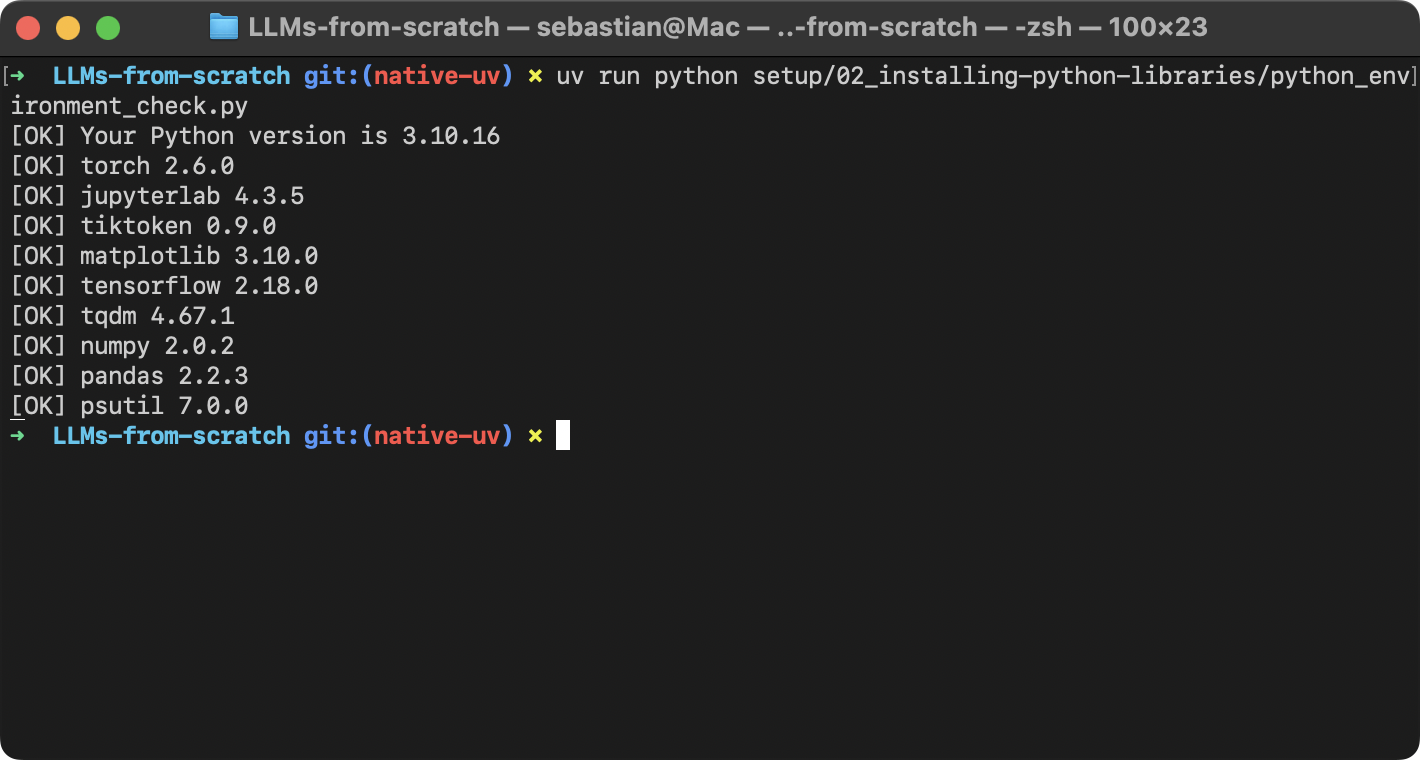 Or, if you don't want to type `uv run python` ever time you execute code, manually activate the virtual environment first.
On macOS/Linux:
```bash
source .venv/bin/activate
```
On Windows (PowerShell):
```bash
.venv\Scripts\activate
```
Then, run:
```bash
python setup/02_installing-python-libraries/python_environment_check.py
```
**Launching JupyterLab**
You can launch a JupyterLab instance via:
```bash
uv run jupyter lab
```
Or, if you manually activated the environment as described earlier, you can drop the `uv run` prefix.
---
Any questions? Please feel free to reach out in the [Discussion Forum](https://github.com/rasbt/LLMs-from-scratch/discussions).
Or, if you don't want to type `uv run python` ever time you execute code, manually activate the virtual environment first.
On macOS/Linux:
```bash
source .venv/bin/activate
```
On Windows (PowerShell):
```bash
.venv\Scripts\activate
```
Then, run:
```bash
python setup/02_installing-python-libraries/python_environment_check.py
```
**Launching JupyterLab**
You can launch a JupyterLab instance via:
```bash
uv run jupyter lab
```
Or, if you manually activated the environment as described earlier, you can drop the `uv run` prefix.
---
Any questions? Please feel free to reach out in the [Discussion Forum](https://github.com/rasbt/LLMs-from-scratch/discussions).